

Think about the moment someone taps your link. They watched your video, heard your episode or read your post, and they are curious enough to look. That curiosity is real, and it does not last long. The next thing they see decides whether they become a member or close the tab.
Until now, that next thing was a form: a name, an email address and a new password to think up, type on a phone keyboard and remember later. None of those steps is hard. Each one is still a chance to say "maybe later," and "later" rarely comes.
MemberPad now gives your future members a shorter path.
What is new
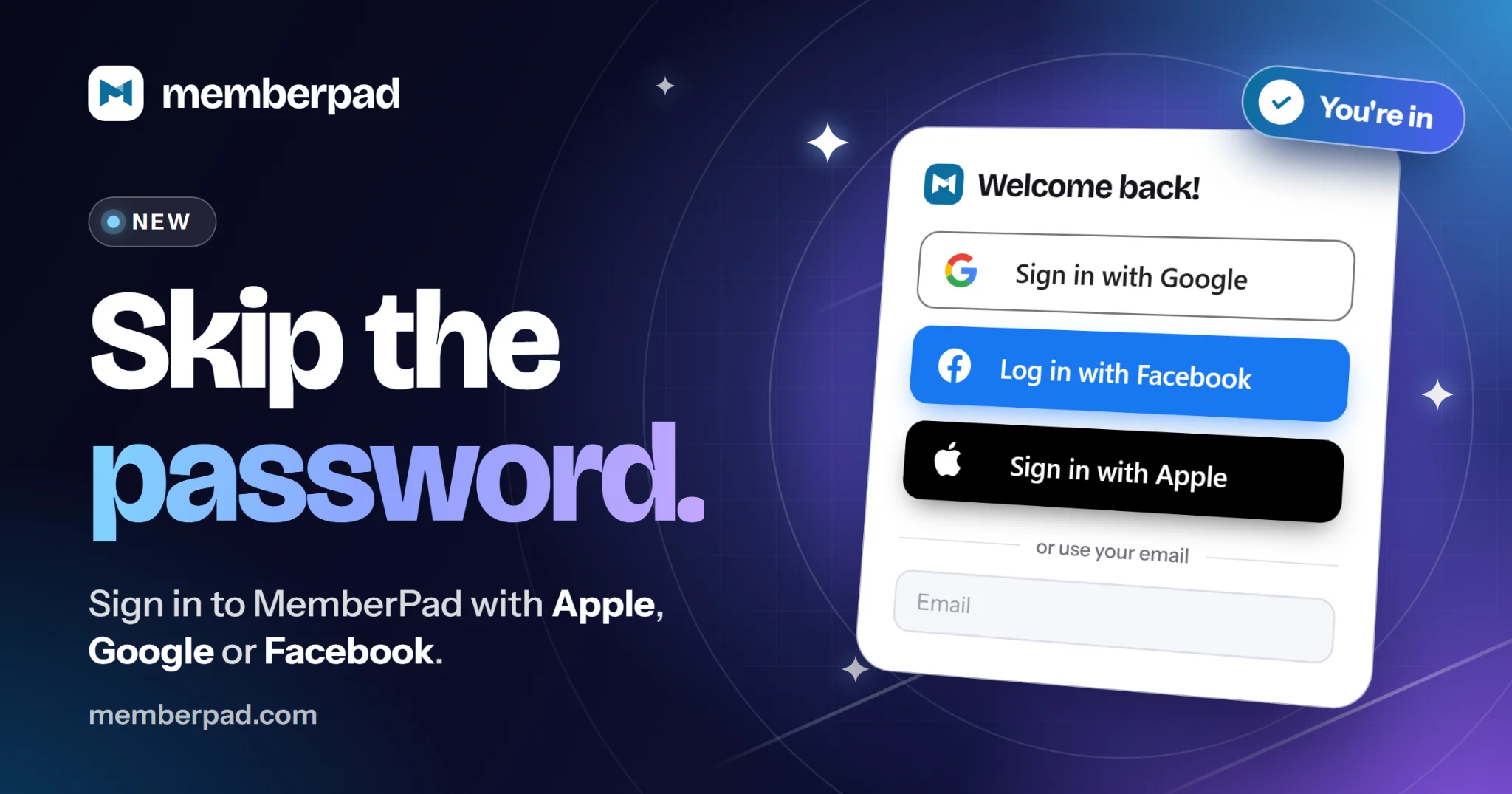
The sign up page has three new buttons: Sign up with Google, Continue with Facebook and Sign up with Apple. The login page has the matching set: Sign in with Google, Log in with Facebook and Sign in with Apple.
A new member picks the account they already use every day, approves it, and they are in. Signing up with an email address and a password is still there for anyone who prefers it, right below the buttons under or use your email.
Available everywhere MemberPad runs
Your members do not all show up the same way. Some open your link in a browser, some live in the phone app, and some keep MemberPad desktop app open on their computer all day. The new buttons are on every one of them, in every community, with nothing for you to switch on.
Web. The buttons are on the sign up and login pages in any browser, on a computer or a phone.
iPhone. In the MemberPad app for iPhone, Sign in with Apple uses Apple's own sign in sheet, right inside the app. Google and Facebook open in a secure browser window and bring the member straight back to the app.
Android. In the MemberPad app for Android, the member picks a button, approves it in a secure browser tab, and lands back in the app, signed in.
Windows desktop. The MemberPad app for Windows opens the member's browser to sign in, then returns them to the app.
Mac desktop. The MemberPad app for Mac works the same way: approve in the browser, and the app takes it from there.
It is one account everywhere. Someone who joins with Google on the web taps the same Google button in the phone app or the desktop app and finds the same memberships and purchases waiting. Members who already have an app installed only need its latest update to see the buttons.
Why this matters for your community
Fewer steps between interested and joined
Nobody has to invent a password. Their name and email address come from the account they picked, so there is almost nothing to type. On a phone, that is the difference between a few taps and a form.
They land where they were headed
The sign up remembers where it started. Someone who begins on your community's page joins your community, whichever way they choose to sign in. If they arrived through one of your invitations or a referral link, that comes along too.
Their email arrives confirmed
When Google, Apple or Facebook hands over an email address it has already confirmed, the new account starts out verified. There is no confirmation email to hunt for in a spam folder before your new member can settle in. If the service does not share an address MemberPad can rely on (a Facebook account opened with a phone number, for example), MemberPad asks for one and confirms it with a six-digit code.
Coming back is easy too
Joining is only half of it. A member who signed up months ago, on a different phone, with a password they have long forgotten, is one reset email away from giving up. With a connected account, coming back is one button. Members who can get in are members who show up, read your posts and renew.
People trust buttons they already know
A newcomer may not know MemberPad yet. They do know Google, Apple and Facebook. Signing in this way means they never hand a new password to a site they just met, and the answers to the questions careful people ask are good ones:
MemberPad receives their name, their email address and an identifier for that account. Nothing else.
MemberPad never receives their Google, Apple or Facebook password.
MemberPad cannot post to their account or read anything in it.
With Sign in with Apple, a member can choose to hide their email. Apple then gives MemberPad a private relay address that forwards to them.
No duplicate accounts for the members you already have
Your existing members can use the new buttons as well. If someone already has a MemberPad account and signs in with a Google, Apple or Facebook account that uses the same email address, MemberPad connects the two instead of creating a second account. Their memberships and purchases are right where they left them, and they get a security email letting them know a new way to sign in was connected.
Nobody is locked in to one way of signing in
Under Settings, then Security, members can see their Connected accounts and disconnect one at any time, as long as they keep another way to sign in. Someone who joined with a button can also use Set a password to add a password later.
If your community has its own domain
The buttons work on a creator's custom domain too. There, a short note under them reads You'll continue on memberpad.com. The sign in itself happens on memberpad.com, and the new member still joins your community.
One thing worth knowing about in-app browsers
When someone opens your link inside an app like Instagram or TikTok, the page loads in that app's built-in browser. Google does not allow its sign in to run there, so MemberPad leaves the Google button out and says so: To continue with Google, open this page in your browser. The same goes for Facebook inside a few Android apps. Signing up with an email address works everywhere, so nobody hits a dead end.
Make the most of it
Share the link to your community page. A sign up that starts there ends in your community.
Tell people how quick it is. "Join with your Google or Apple account" is an easier ask than "create an account," so say it when you invite people in a video, a post or an email.
Let your current members know. Anyone who has ever been stuck on a forgotten password can use a button instead the next time they sign in, as long as it is an account with the same email address.
The best version of your community is the one people can actually get into. Now the front door opens with an account they already have.